Import an ICS calendar and merge its events in one place
Import an ICS calendar file to bring a school term, a work rota or a shared trip into your own plans. Pick the file, and its events merge by UID, so a second import adds nothing twice.
- Nothing to install
- No duplicates on re-import
- Repeats and reminders kept
- Works with
- .ics
- iCalendar
- TZID
Use cases
Move from another calendar service
Take the .ics export you already have and bring its events into one calendar, keeping repeats and reminders.
Merge two calendars
A work rota and a family calendar in one place, with no duplicates when the same file arrives again.
Start a new term
Import the school's term dates first, then add practices, trips and deadlines around them.
How do I import an ICS file on a phone?
Open the calendar in the phone's browser, download the .ics file, then use ⋯ → Import events… and pick it from Files or Downloads. Dragging is awkward on a touch screen, so the menu is the reliable route. The events appear in the same calendar and save themselves; nothing needs to be copied to a desktop first.
How do I merge multiple ICS files into one?
Import them one after another into the same calendar. Each import is merged by UID, so events that already exist are updated rather than copied, and importing the same file again changes nothing. When everything is in, Save as… writes the combined calendar to a fresh .ics file. That is the whole merge: no separate converter and no upload.
Can I import an ICS calendar from a smart-home system?
If the system gives you an .ics file or a download of its schedule, yes: save the file and import it here. What is not available is subscribing to a URL, so the calendar will not refresh itself when the source changes. Import the new export when you need the update; UID merging keeps the result tidy.
Can I import an ICS calendar from my phone's calendar app?
Yes, in one direction: export the calendar from that app as an .ics file, then import the file here. The events, their repeats and their reminders come across. Going the other way works too — Save as… produces an .ics file that other calendar apps can import. What is not offered is a live two-way sync.
How to import an .ics file
Open the file menu
In the calendar, open ⋯ (More) and choose Import events…. This adds to the calendar you already have instead of replacing it.
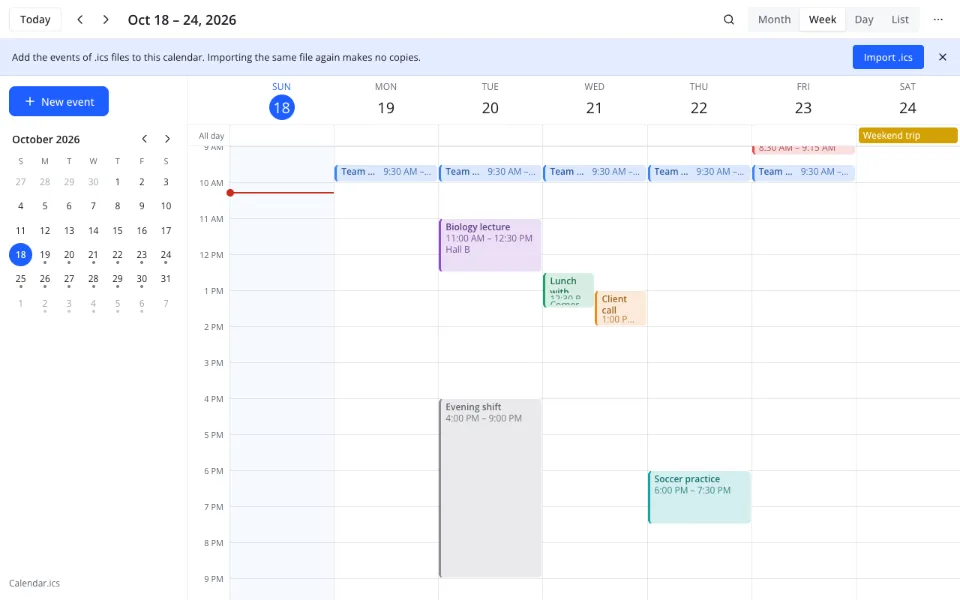
Pick the file
Choose the .ics from your device. You can also drop the file on the calendar window; the result is the same.
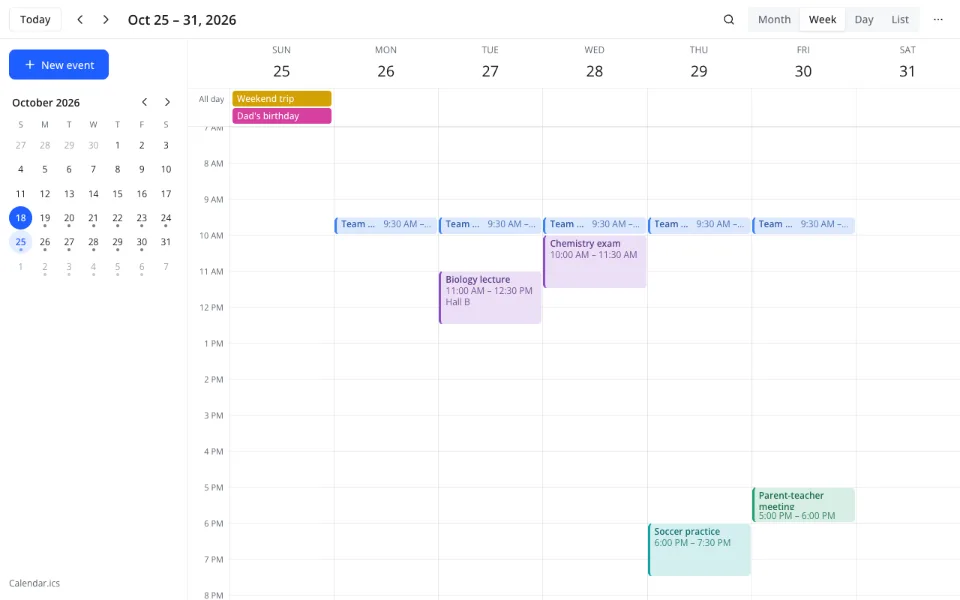
Keep a copy if you need one
Save as… writes the merged calendar to another .ics file, ready to carry to a different device or app.
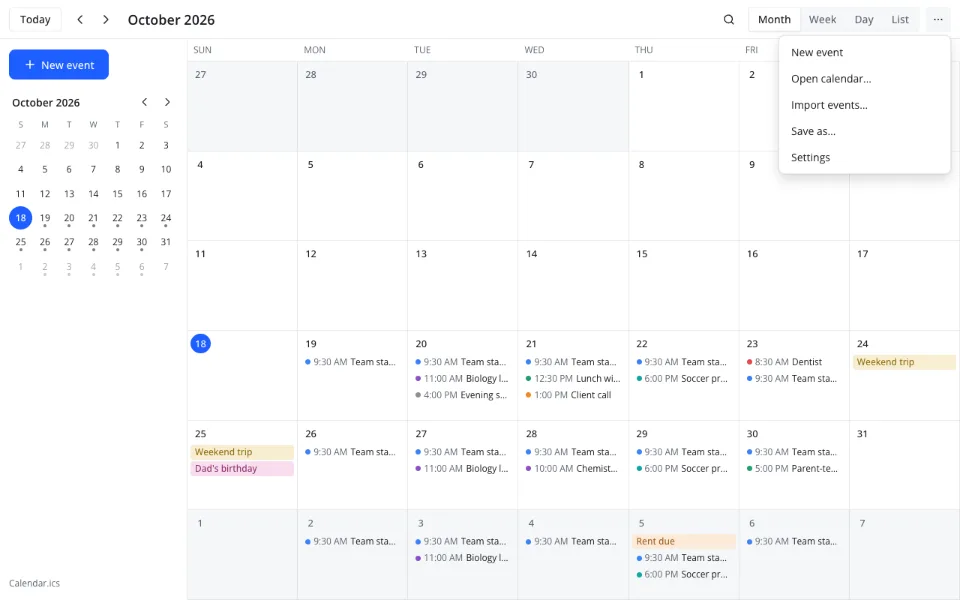
Features
| Feature | What it gives you |
|---|---|
| Import events… | Adds the events of an .ics file to the current calendar |
| Drag and drop | Dropping an .ics on the calendar imports it |
| Merge by UID | Importing the same file again makes no copies |
| Save as… | Writes the merged calendar to another .ics file |
| Kept as they were | Repeats, exceptions, reminders, attendees, to-dos and time zone definitions |
| Autosave | About half a second after each change; there is no Save button |
What import does not cover
- No CSV import — the calendar reads .ics files only
- No subscription by URL, so nothing refreshes on its own
- Event time zones are converted to local time and not kept on save
- No guests, RSVP or invitation replies
- No printing and no PDF export
Privacy
On this page the .ics file is handled in your browser. In Zotu the calendar is stored as an .ics file in your cloud, with no third-party calendar servers in between, and stored data is handled under GDPR.
FAQ
Support: [email protected]
How do I move events out of Outlook?
Export your calendar as an .ics file in Outlook, then open this calendar and use «⋯» → «Import events…» to pick the file. Repeated imports won't create duplicates, because events are matched by UID. There is no live sync with Outlook: import again when you want a fresh copy. Outlook is a trademark of Microsoft; Zotu is not affiliated with Microsoft.
How to import an ICS calendar?
Open the calendar, choose ⋯ → Import events… and pick the .ics file, or drop the file on the calendar window. Its events join the calendar you already have; repeats, exceptions and reminders come with them. The change saves itself about half a second later, so there is no Save button to press.
How to merge ICS files?
Import each file into the same calendar. Events merge by UID, so a file imported twice updates its own events instead of duplicating them. When the last file is in, Save as… writes the combined calendar to a new .ics. No converter, no upload and no separate merge tool are needed.
How do I import an ICS calendar on a phone?
Use the phone's browser: download the .ics, open the calendar page, then choose ⋯ → Import events… and select the file. The menu works where dragging does not, and the events save themselves. The same calendar is then readable on any device where you open Zotu.
Can I import an ICS calendar into another calendar app?
Yes, through the file. Use Save as… to write the merged calendar to an .ics, then import that file in the other app. There is no direct sync between the two, so repeat the export when you want a fresh copy. Repeats, reminders and foreign properties survive the trip because they stay in the file.
What happens if I import the same file twice?
Nothing is duplicated. Events are matched by UID, the identifier each event carries in the file, so a second import updates the existing events rather than adding copies. This also makes a repeated import a safe way to pick up corrections from a file that was re-exported by its source.
Will repeats and reminders survive an import?
Yes. Repeats, their exceptions and their reminders are read from the file and kept. So are attendees, to-dos, time zone definitions and email alarms that the app itself does not edit. Rules outside the supported subset are still preserved in the file, though the calendar may show that event only once.
Can I import a CSV file?
No. The calendar reads .ics files, the standard calendar format, and has no CSV import. If a spreadsheet holds your schedule, export it as .ics from a calendar tool first, or add the events by hand — there is no converter on this page. JSON import and export are absent for the same reason.
Is it free? Is there a watermark?
Importing, merging and saving calendars is free and costs $0. There is no watermark, no file-count limit and no paid tier for the calendar. The only costs anywhere in Zotu belong to optional services outside the calendar, and importing an .ics never touches them.
Is it safe to import an ICS file here?
On this page the file is read in your browser and is not uploaded. Inside Zotu the merged calendar is your own .ics file in your cloud, handled under GDPR, with no third-party calendar servers. Nothing in the file is sent anywhere else, and unknown properties are preserved rather than dropped.
More tools
Import an ICS calendar and merge its events in one place
Merge another .ics into your calendar without copies.
Open the calendar